iPhone guide
How to Read a Dark PDF in Light Mode on iPhone
Your iPhone can be in Light Mode and a PDF can still open as a black page. That is because the PDF page has its own colors. If the file itself is dark, you need a PDF tool that changes the page view, not just the phone interface.
Quick answer
To read a dark PDF in light mode on iPhone, open the PDF Light Mode Reader in Safari or Chrome, choose the PDF from Files, and start with the white theme.
If you want to keep the result, use the downloadable light mode PDF tool, preview the pages, and save the new file back to your iPhone.
Why iPhone Light Mode does not fix every PDF
iPhone Light Mode changes menus, settings, and app surfaces. It does not rewrite a PDF page. If a slide deck, manual, or ebook was made with a black background, most PDF viewers will show that background exactly as it is.
That is why a dark PDF can still feel harsh in Apple Files, Safari preview, or another reader app. The phone is already bright. The PDF is the part that needs a light reading view.
Use Safari when you just need to read
The simplest path is to use the browser. Open the reader, tap the upload area, and choose the PDF from Files, iCloud Drive, Downloads, or another location available on your iPhone. The page opens in light mode without making a new file first.
Start with White. If you are reading at night or on a bright screen, try Warm, Green, or Blue. Those themes are still light, but they can feel less sharp than pure white during long reading sessions.
Dark page versus light mode page
On a small iPhone screen, the difference is not subtle. A white page usually makes headings, paragraphs, and page numbers easier to scan.
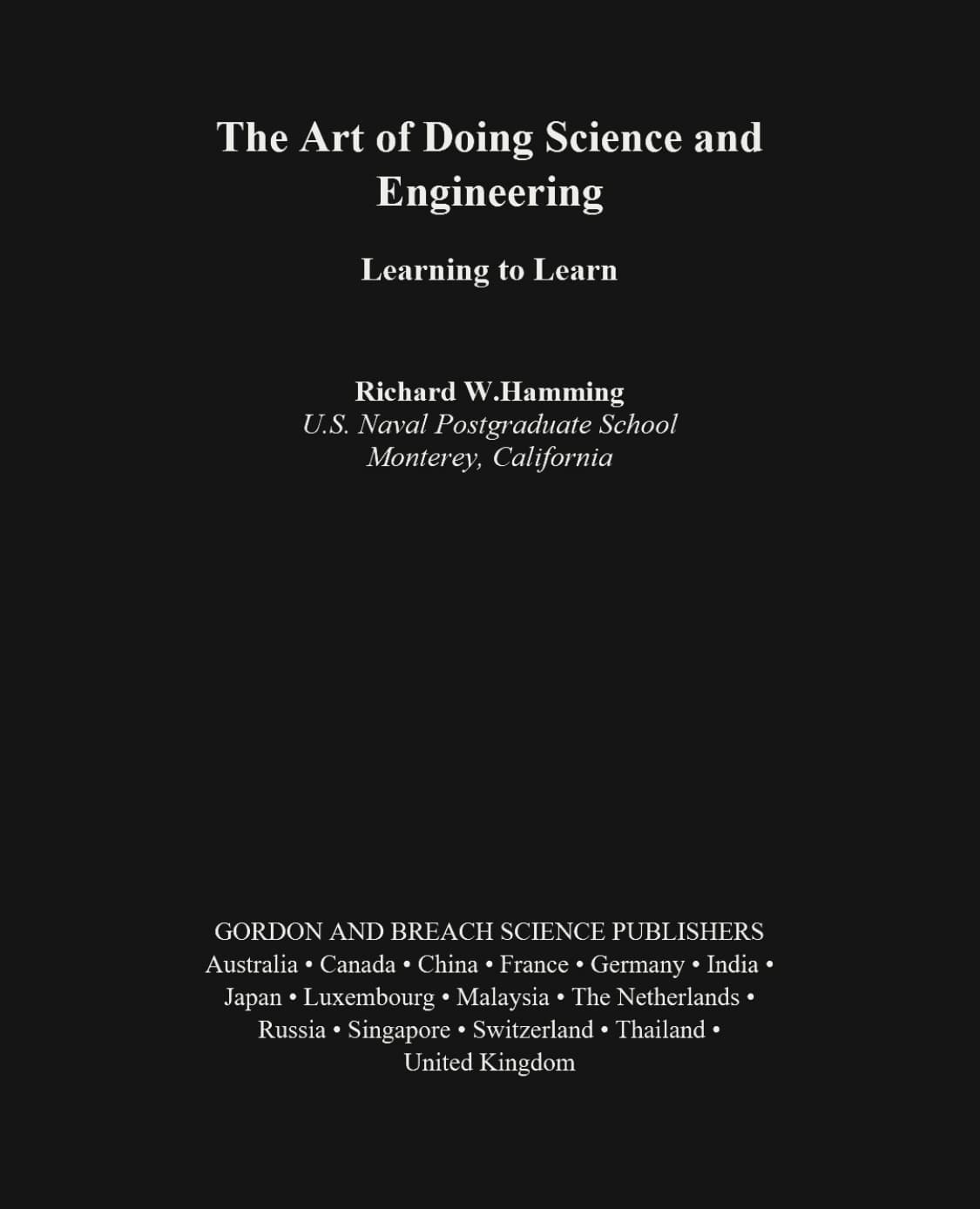
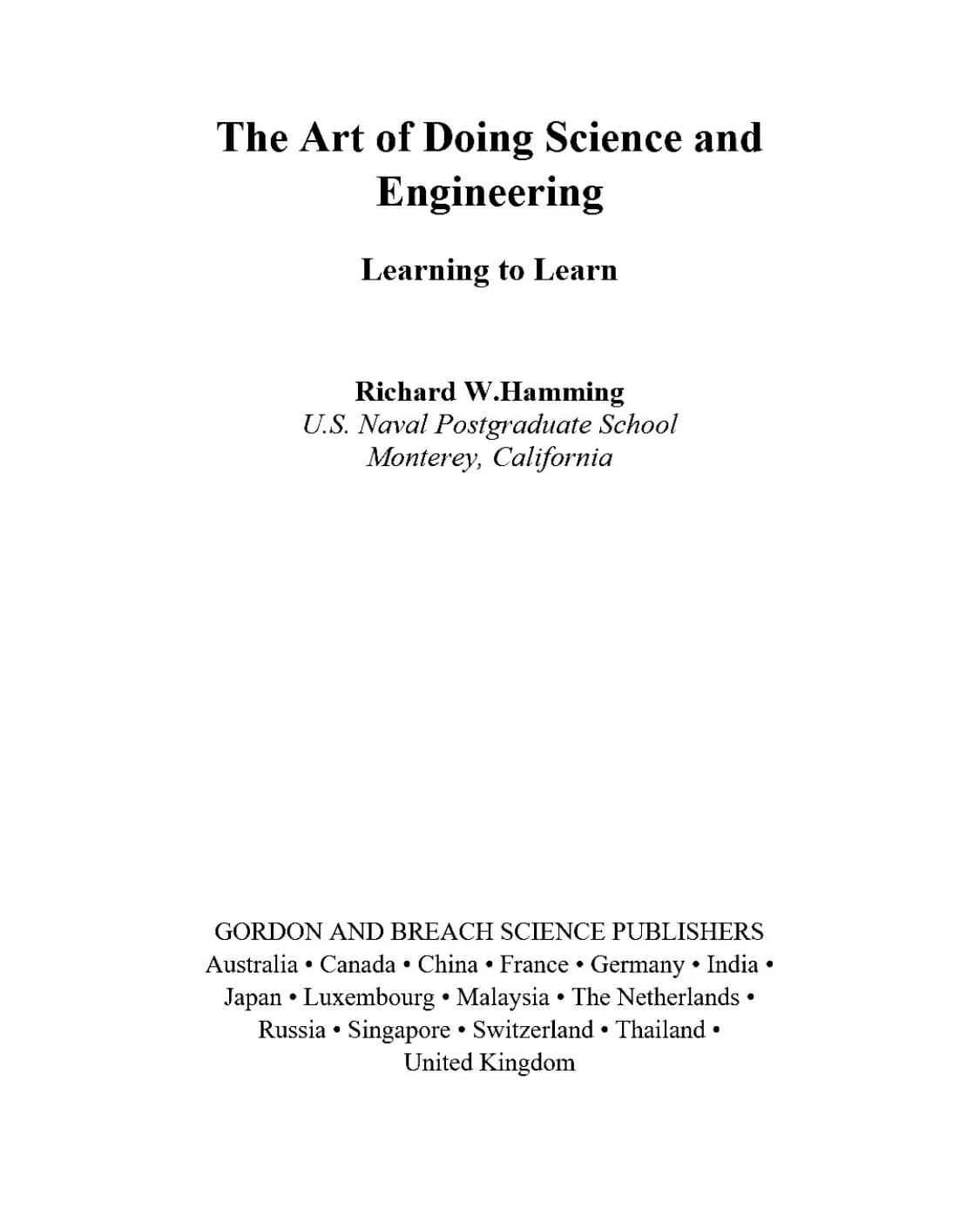
Text reading mode helps on a small screen
Some PDFs are hard to read on iPhone even after the background is fixed. The page may have tiny text, tight columns, or line spacing that was designed for a laptop screen.
When the PDF has selectable text, Text reading mode can extract the text locally and let you adjust the reading view. You can increase or decrease the font size, change line height, and choose a different font family. For long articles, lecture notes, and manuals, this is often more useful than pinching the page in and out.
When to download a light mode PDF
Use the reader when you only need to view the file now. Use the converter when you want a light copy in Files, want to print from your iPhone, or need to open the result in another app.
Before saving the converted PDF, check a few preview pages. Plain text pages usually convert cleanly. Pages with photos, screenshots, charts, or colored diagrams deserve a closer look.
What about Smart Invert?
Smart Invert and Classic Invert can be useful accessibility settings, but they are not precise PDF tools. They may affect the whole screen, not just the PDF page. Images and charts can also change in ways you did not intend.
A PDF light mode reader is more direct. It is made for the PDF reading problem: dark page in, light page view out.
FAQ
Can iPhone Light Mode make a PDF white?
Usually no. It changes the iPhone interface, but the PDF page can keep its original black or tinted background.
Can I save the light mode PDF to Files?
Yes. Use the converter, download the new PDF, and save it through the iPhone share or download flow.
Will Text reading mode work with scanned PDFs?
Only if selectable or OCR text is available. Image-only scans can still use page color mode for a light background.