Android guide
How to Read Dark PDFs in Light Mode on Android
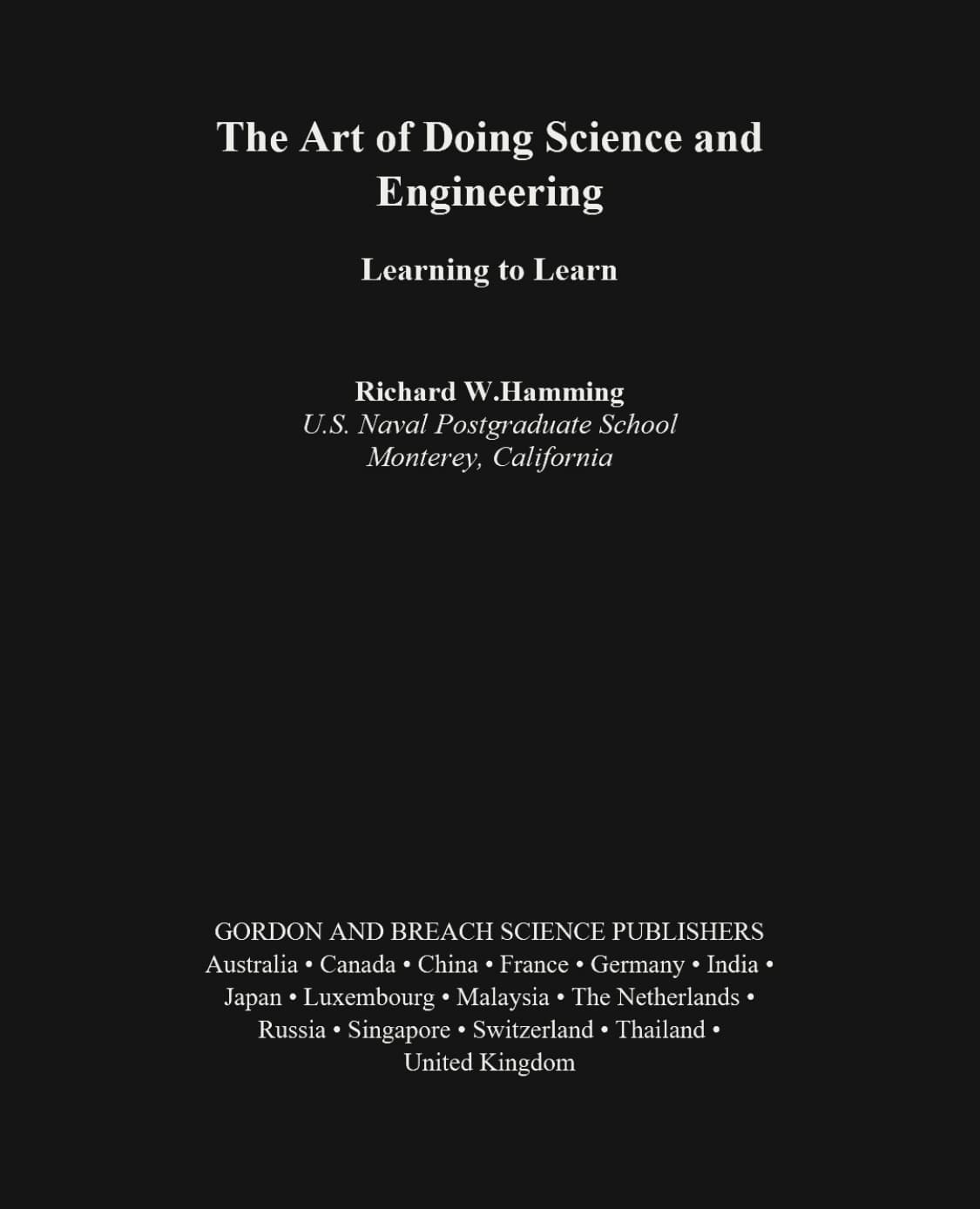
A dark PDF on an Android phone can be frustrating in a very ordinary way. The phone is in light mode, Chrome looks normal, but the PDF page is still black with pale text. The system theme changed. The document did not.
Quick answer
If you just want to read a dark PDF on Android, open the PDF Light Mode Reader in Chrome, choose the file, and start with the white theme.
If you want a new file you can keep, print, or send, use Invert PDF Colors to preview and download a light mode PDF.
Why Android Light Mode does not fix the PDF
Android Light Mode mostly changes the system and app interface. It can make menus, toolbars, and settings bright, but it does not rewrite the colors printed inside a PDF page. If a document was made with a charcoal background, most viewers will show that page as charcoal.
You might see this in Chrome, Google Drive preview, Files, or a separate PDF app. The app may be light. The PDF is still carrying its own page colors.
Read the PDF in light mode first
The quickest route is reading, not converting. Open the reader in Chrome or another Android browser, tap the upload area, and choose the PDF from Downloads, Files, Google Drive, or any file picker location your phone offers.
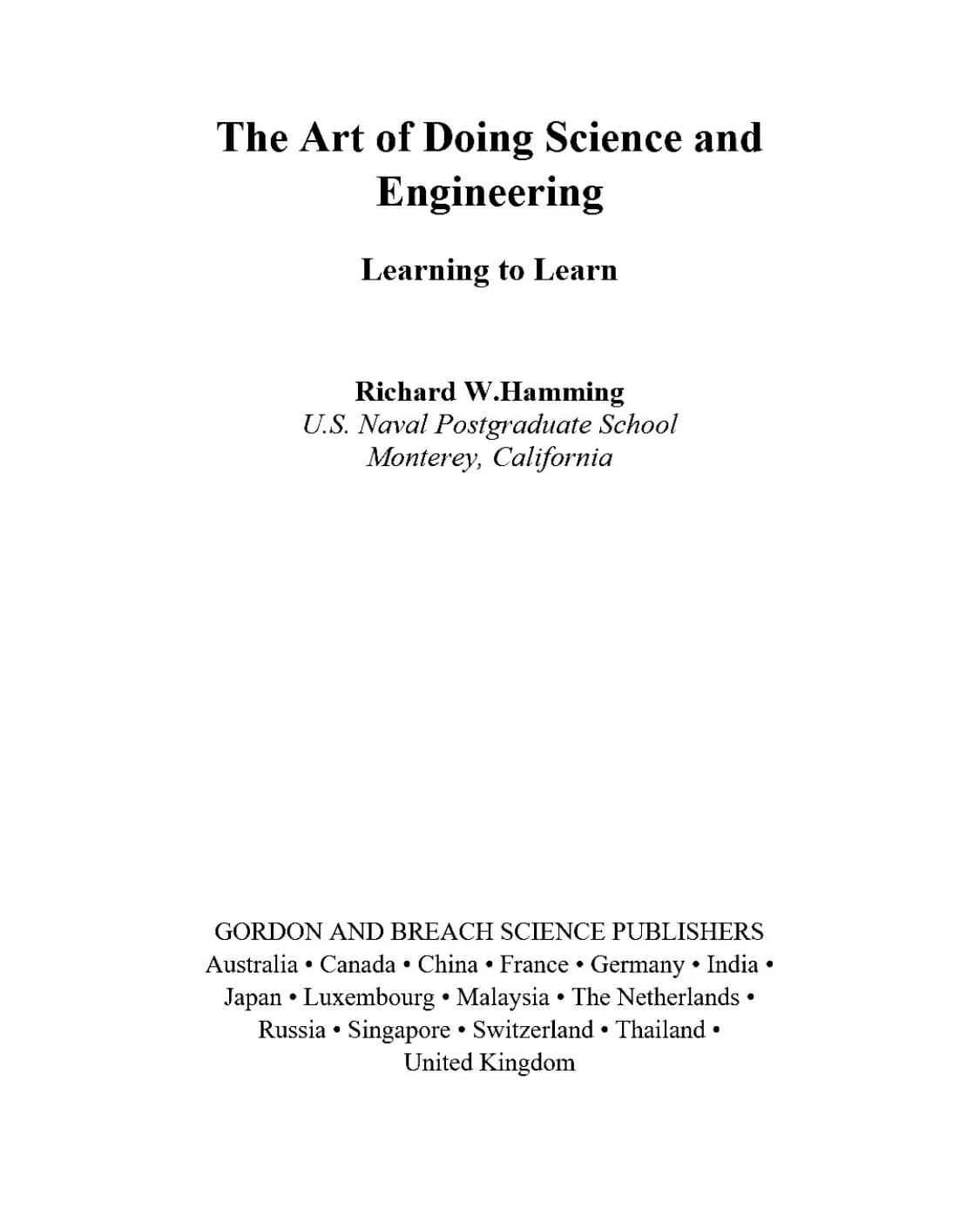
White is the safest first choice because it gives the familiar paper-like view: light background, dark text. Warm, green, and blue are useful when you are reading for longer and plain white feels too bright.
Dark PDF page versus light mode page
On a phone screen, the background color makes a big difference. A light version is usually easier to scan and less tiring when you are holding the screen close.
Download a light mode PDF when you need a copy
Reading mode is enough for a quick look. Downloading makes sense when you want to keep the light version in Downloads, upload it somewhere else, print it, or send it to someone who does not want to deal with a dark PDF.
The converter works from dark to light: choose the PDF, preview the first pages, pick White or another light theme, and download the new file. Keep the original PDF too, especially if it has photos, screenshots, or color-coded charts.
Small-screen tip: use Text reading mode
Android screens vary a lot. Some are large enough for a full PDF page, and some make every paragraph feel like a pinch-and-zoom exercise. If the PDF has selectable text, Text reading mode can extract the text locally and make the document feel more like an article.
You can increase or decrease font size, adjust line height, and choose a different font family. That is often better than zooming a fixed PDF page back and forth.
What about Android color inversion?
Android accessibility settings can invert screen colors, but that is a broad screen-level change. It may affect the browser, images, screenshots, and app UI along with the PDF. It is useful for some people, but it is not a precise PDF conversion tool.
A PDF light mode tool is more targeted. It is made for this specific problem: a dark PDF page that needs a light reading view or a downloadable light copy.
Need light PDF to dark mode instead?
This article covers dark PDFs changed into light mode. If you want the opposite direction, turning a normal light PDF into a dark reading version, use PDF Dark Mode.
FAQ
Can Android make a PDF background white by itself?
Usually no. Android can change the phone theme, but the PDF page keeps the colors built into the document.
Can I save a light mode PDF on Android?
Yes. Use the converter, download the light version, and save it through your browser's normal download flow.
Will it work with scanned PDFs?
Scanned PDFs can use page color mode because the page is rendered visually. Text reading mode only works when selectable or OCR text is available.