Printing guide
How to Print Dark PDFs in Light Mode Without Wasting Ink
A dark PDF can be pleasant on a screen and miserable on paper. Before you send it to the printer, it is worth making a light version, checking a few pages, and avoiding a job that covers the sheet in black ink.
Quick answer
If you only need to read the file, open it in the PDF Light Mode Reader. It keeps the PDF layout on screen and gives the page a white or softly tinted background.
If you need a copy that you can save and print later, use Invert PDF Colors. It creates a new light mode PDF locally in your browser, so you can preview the pages before you download.
Why dark PDFs are rough on printers
Many dark PDFs were made for presentations, tablets, or night reading. They often use a black or charcoal page with pale text. That can look polished on a monitor, but printers treat the background as real ink coverage. A ten-page handout can become a slow, heavy print job.
The goal is not to redesign the document. For printing, the useful move is simpler: turn the page surface light, keep the text readable, and preserve the original layout as much as possible.
Use the light mode reader first
Start with the reader when you are not sure whether the PDF is worth printing. Drop the file into the light mode reader, choose the white theme, and scan the pages that matter. This is the fastest way to see whether a dark handout, article, manual, or scan becomes readable on a clean background.
This also helps you catch awkward pages before creating a download. Charts, photos, and screenshots can behave differently from plain text. A quick look in PDF light mode saves you from printing a version that looks fine on page one and strange on page six.
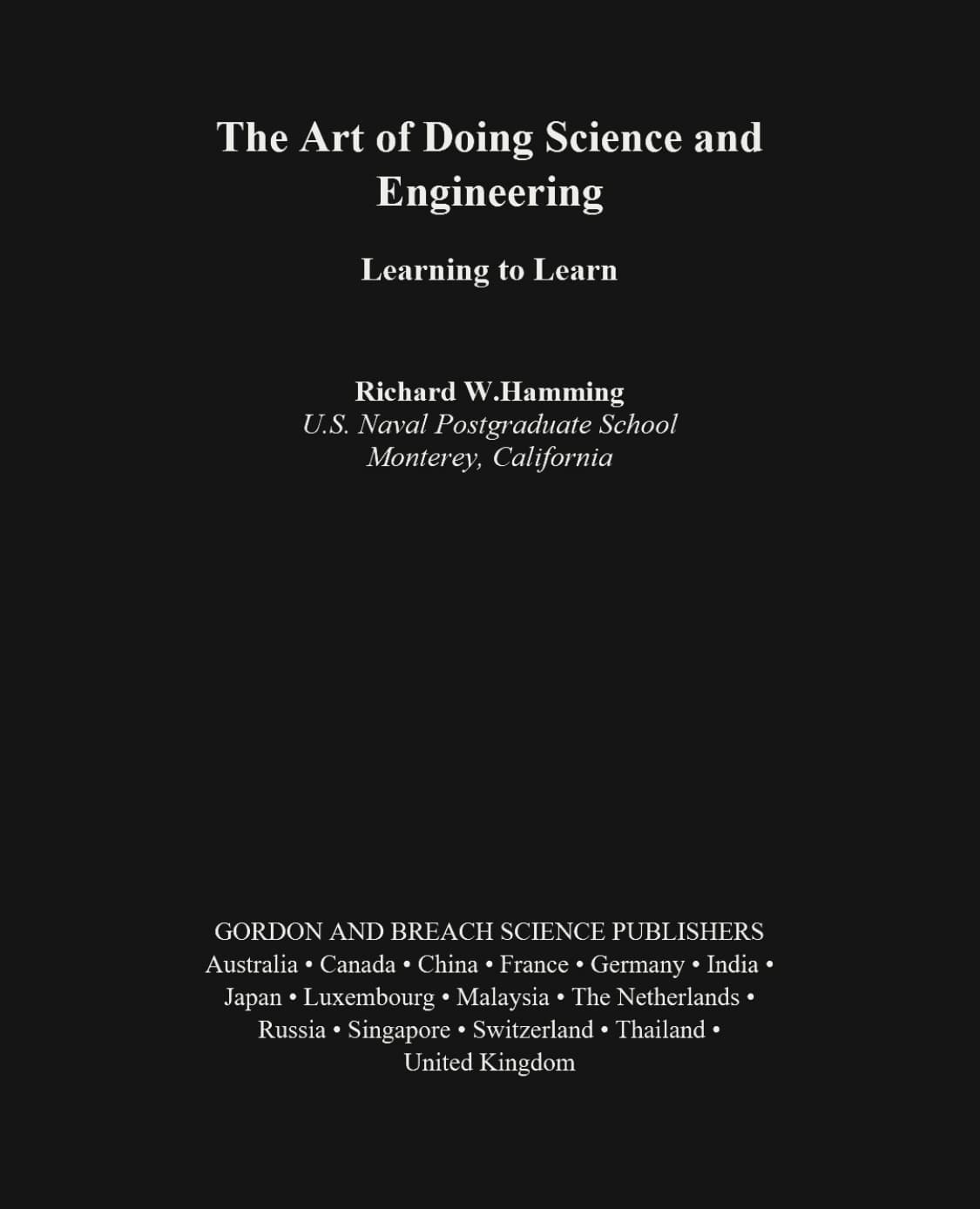
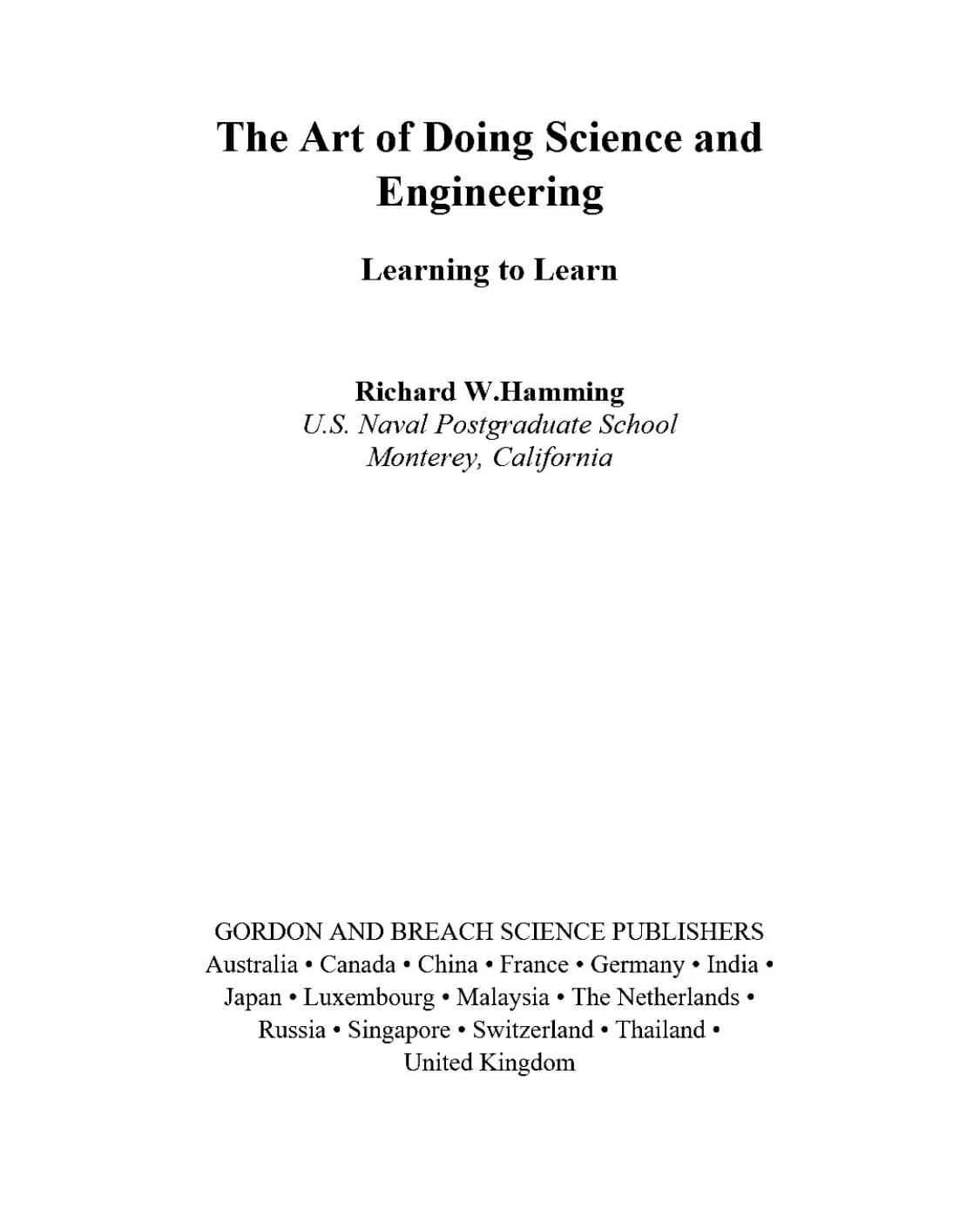
Dark page versus print-friendly white page
For printing, the white version is usually the safer choice. It keeps the page readable while avoiding a full dark background.
When to use Invert PDF Colors
Use the converter when the print job needs a separate file. The tool renders the PDF pages, applies a light theme, and builds a new PDF in the browser. That makes it useful when you want to send the file to another device, keep a print-friendly copy, or open it in a desktop PDF app before printing.
The phrase Invert PDF Colors can sound like a harsh black-to-white flip. Here, the practical aim is softer: make dark pages usable on white paper without asking you to install a PDF editor.
A print-friendly workflow
- 1. Open the PDF locally. Choose the file from your device. The tools are designed to work in the browser, so the file is not uploaded for reading or conversion.
- 2. Check the white theme first. White background and dark text is usually the best choice for printing. Warm, green, or blue can be better for screen reading, but plain white is safer on paper.
- 3. Preview more than the cover. Look at a dense text page, a page with images, and any page with tables or diagrams.
- 4. Download only when the preview works. If the preview looks right, create the light copy and print from that file.
What to check before you print
- Make sure small text is still sharp enough to read.
- Check pages with photos, logos, colored charts, or screenshots.
- Print one test page before printing a long document.
- Keep the original PDF in case the converted copy is not right for a specific page.
FAQ
Can I use PDF Light Mode before printing?
Yes. It is a good first step because you can check the document in a light reading view before making a converted copy or using paper.
Is the converter better than the reader for printing?
For actual printing, usually yes, because it gives you a downloadable light PDF. For quick review, the reader is faster.
Will it work for scanned PDFs?
Scanned PDFs can work because the page is rendered before the colors are remapped. Still, scans vary a lot, so preview a few pages first.