PDF color guide
Invert PDF Colors
Inverting PDF colors sounds like a tiny setting, but it usually means something practical: a dark page is hard to read, print, or share, and you want a clean light version without rebuilding the document.
Quick answer
If your PDF has a black or dark background, use the Invert PDF Colors tool to turn it into a light mode PDF. The white theme is the best place to start.
If you only want to read the file and do not need a download, open it in the PDF Light Mode Reader first. It changes the viewing surface without changing the original PDF.
What “invert PDF colors” usually means
People use the phrase in a few different ways. Sometimes they want a true negative effect. More often, they want the useful result: black pages become white pages, pale text becomes dark text, and the PDF is easier to read on a normal screen.
That distinction matters. A rough color flip can make photos and charts look odd. A light mode conversion should aim for a readable page first, not a dramatic effect.
Before and after
A dark PDF page can look fine on one display and still be uncomfortable on another. The white version is usually easier to scan, easier to print, and less distracting for long reading.
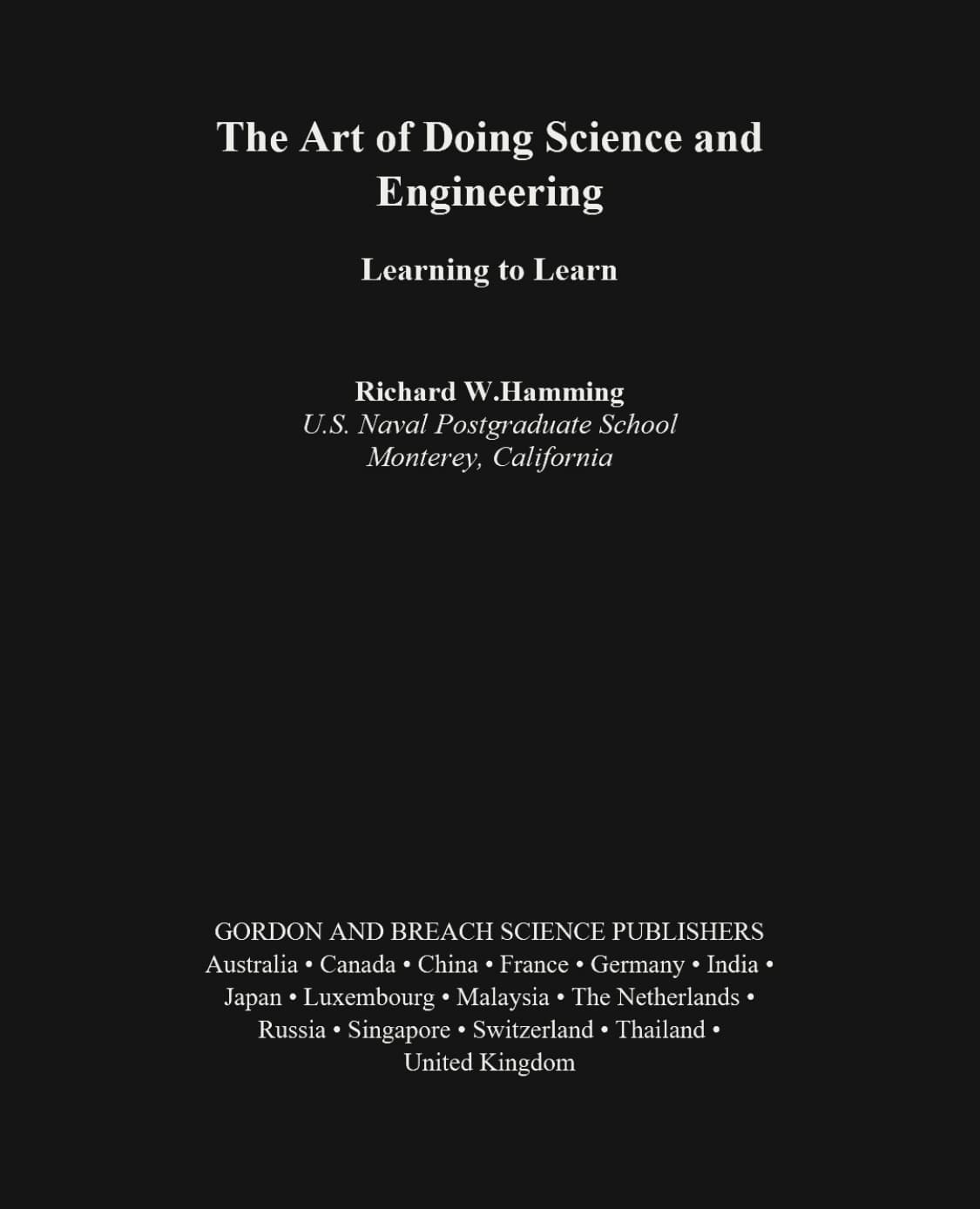
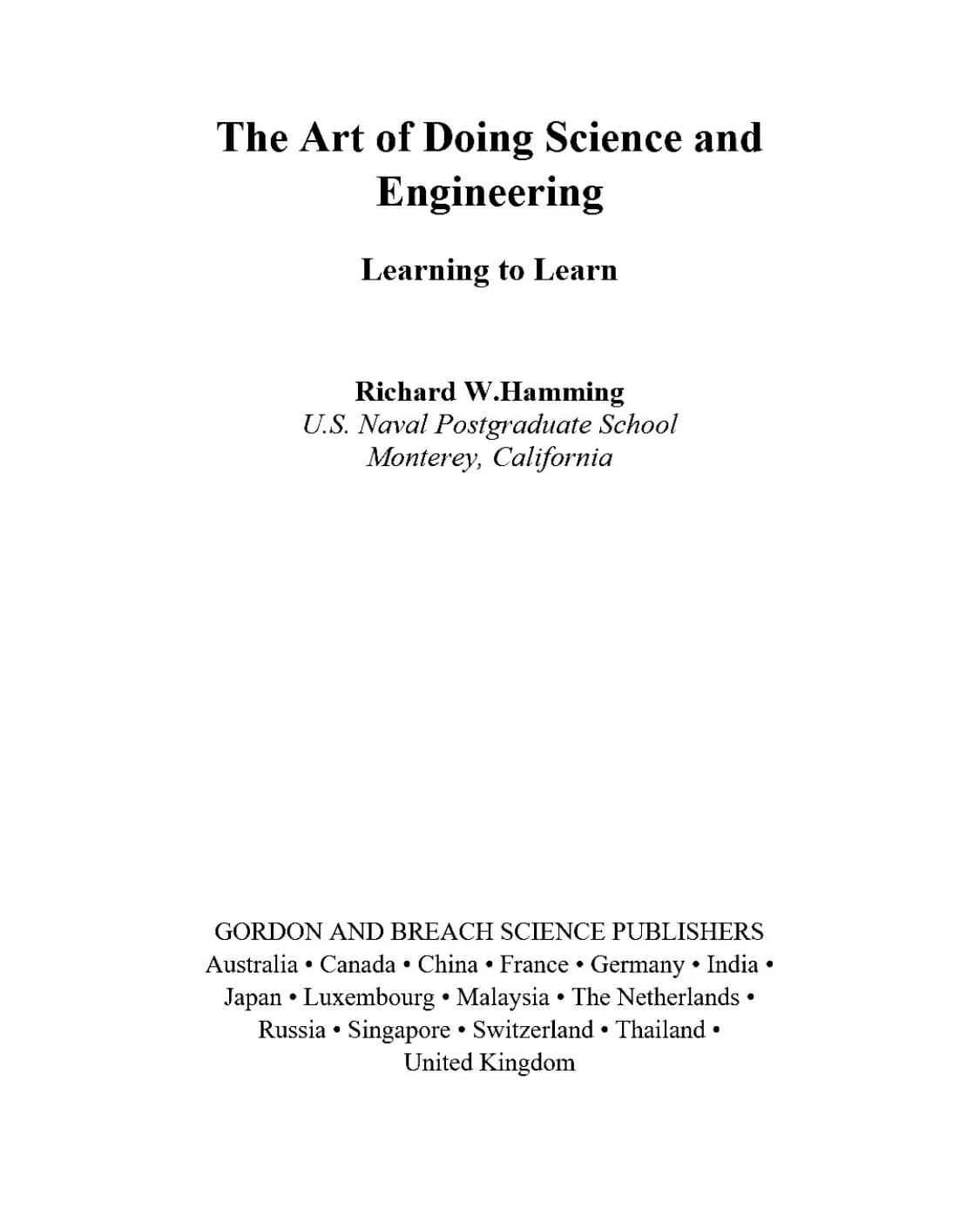
How to invert a PDF from dark to light
- 1. Choose the PDF from your device. The file opens in the browser, so there is no desktop app to install.
- 2. Start with the white theme. White background with dark text is the most predictable result for reading, printing, and sharing.
- 3. Check the preview pages. Look at a normal text page, a page with images, and any page with tables or charts.
- 4. Download the light mode PDF. Keep the original file too, especially if the PDF contains detailed images or color-coded diagrams.
When a light version is worth making
A converted copy is useful when you want to print a dark handout, save a white-background version to Files, send a cleaner copy to another device, or open the PDF in an app that does not have its own light mode controls.
If you are only checking a few pages, do not overcomplicate it. Use the reader, pick a light theme, and keep moving. Convert only when the new file is actually useful.
What to watch before downloading
- Photos and screenshots may not look exactly like the original.
- Scanned PDFs can vary depending on contrast and background texture.
- Forms, annotations, and selectable text may not behave the same after a rendered conversion.
Need the opposite direction?
This guide is about turning dark PDFs into light mode. If you want to turn a normal light PDF into a dark reading version instead, use PDF Dark Mode.
FAQ
Can I invert PDF colors online?
Yes. Choose a PDF, preview the light result, and download a converted copy from your browser.
Can I turn a black PDF into a white PDF?
Yes. Use the white theme to change a dark PDF into a clean white-background version with dark text.
Does this change my original file?
No. The original PDF stays unchanged. The converter creates a new light mode copy when you download.